Subtitles should sound like someone said them.
Watching a Korean video on YouTube? Turn on Malmat instead of auto-translate. It reads the whole video before it translates, so who is talking to whom, how formal they are and what the joke is all survive in the subtitles.
Add to Chrome free · no account · 10 secondsEnglish → Korean, Korean → English, and Japanese or other languages → Korean. Works in Chrome, Edge, Brave, Whale and other Chromium browsers.
- 01
Add to Chrome
One click in the Chrome Web Store. Nothing to set up, no account. - 02
Open a YouTube video
A 맛 button appears bottom-right in the player, next to CC. - 03
Press 맛
Subtitles start in a few seconds. Press again to hide; press once more and they pick up where they were.
One button, and a few things worth knowing.
This is what Malmat actually draws. Everything happens inside the YouTube player, so there's no pasting links into another site.
-
01
The 맛 button in the player
Two buttons appear just left of YouTube's CC button: 맛 turns the subtitles on and off, and ··· beside it opens Malmat's subtitle settings.
A red underline shows while subtitles are on. YouTube's own captions can stay on; only Malmat's show while it's active.
Keyboard: v toggles the subtitles
-
02
Subtitles in seconds
Translation starts from where you are and shows within seconds; the rest follows in playback order. It stays ahead even at 2× speed.
The first lines you see are a quick draft; a tone-edited version quietly replaces them shortly after. Skip or rewind and that part is translated next.
A video you've translated is kept, so next time it's instant.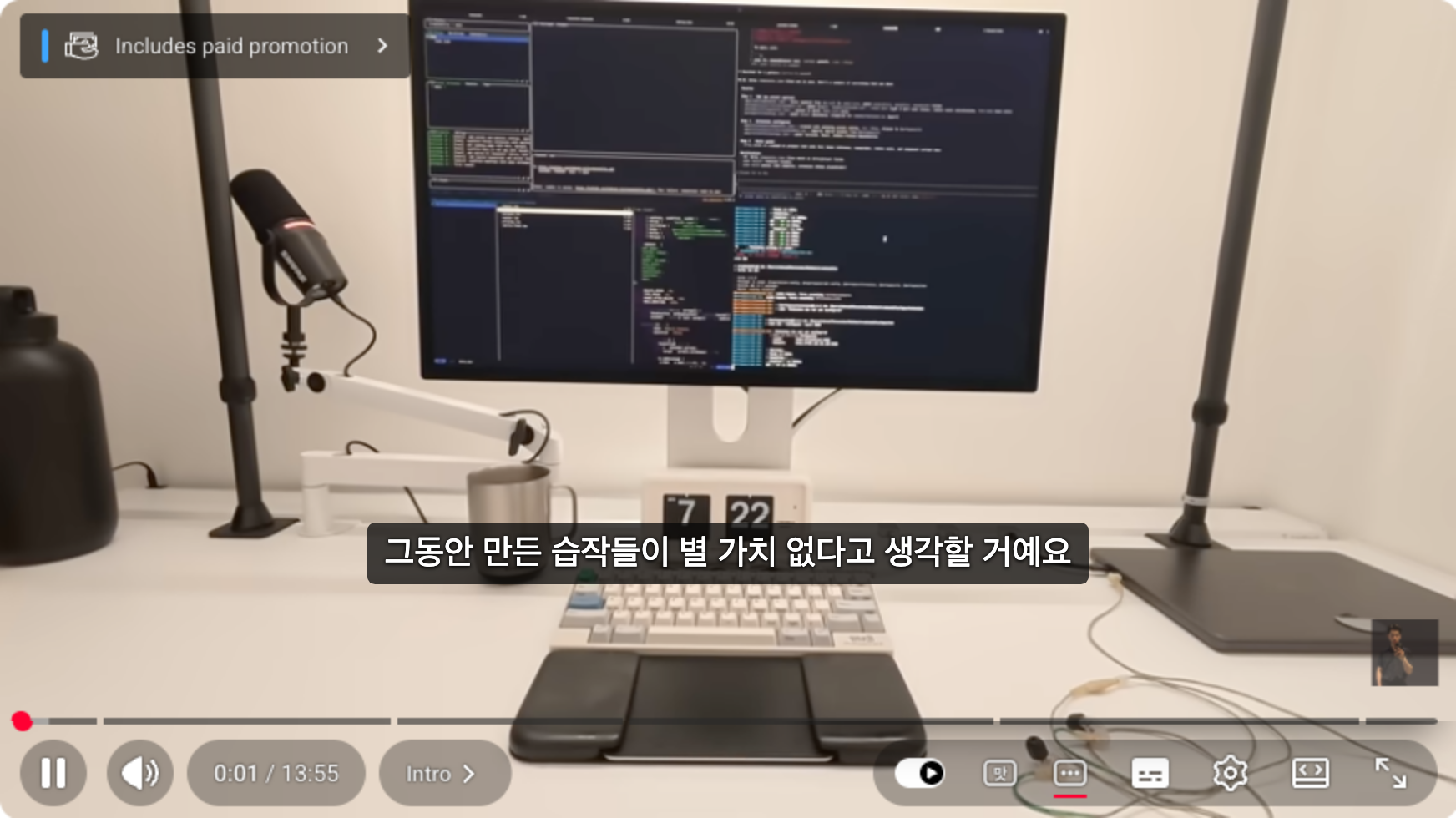
-
03
Subtitle settings
Press ··· (or e, or right-click 맛) and the settings open inside the player. The preview line at the top changes as you click, so just try things.
Lines · translation only, both (either on top), or original only
The first time subtitles appear, the settings open once by themselves. Esc or a click outside closes them.
Size · Background · Position · 75–200% text, box darkness, bottom or top
Timing · nudge in 0.1 s steps if subtitles run early or late; remembered per video
Language · the settings and messages in Korean or English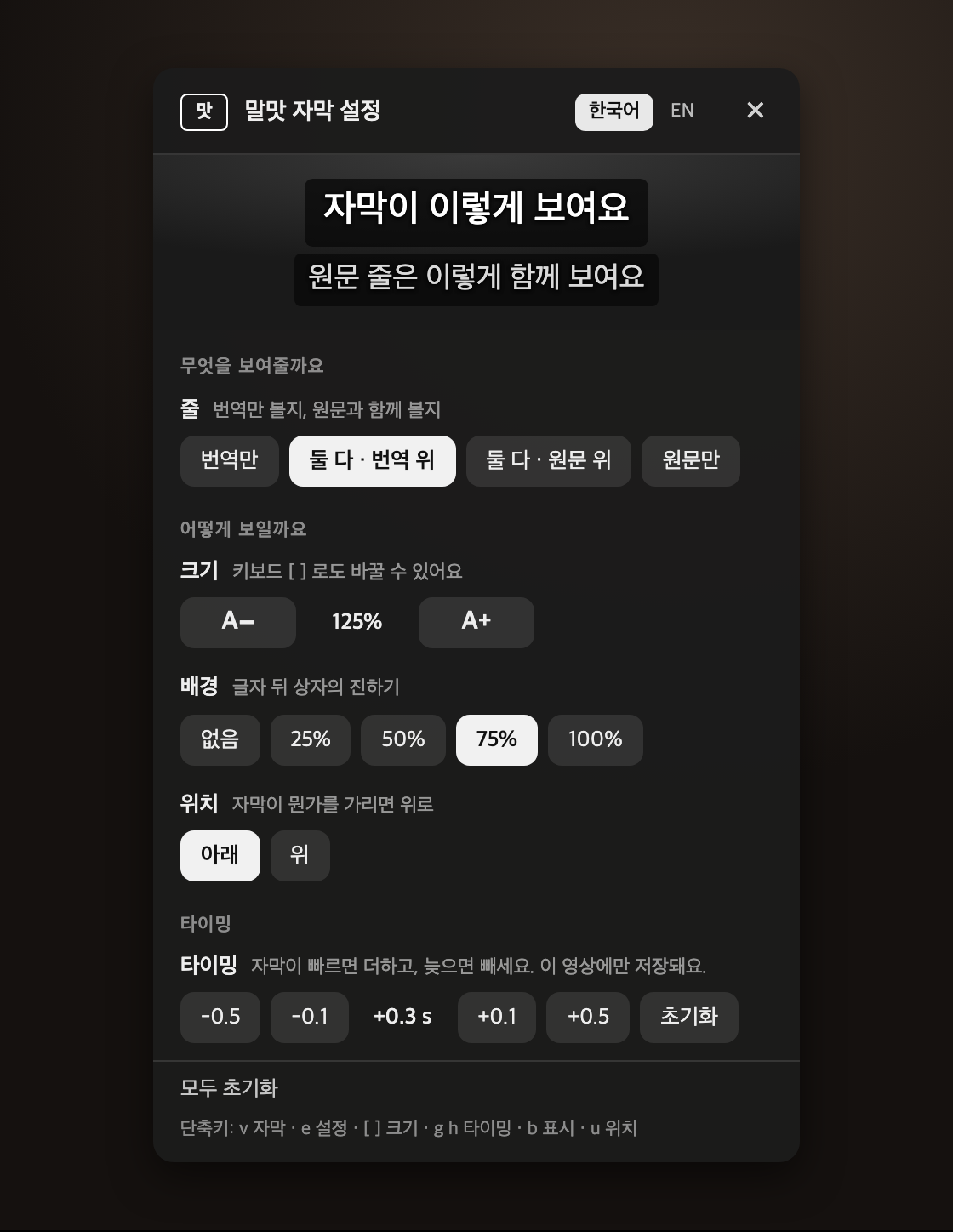
Chosen not to clash with YouTube's own shortcuts (k, j, l, c, f, m, numbers…).
Not wrong, exactly. Just not how anyone talks.
Machine translation carries the words across. Malmat carries what was said. The middle column is the word-for-word version; next to it is Malmat's actual subtitle.
| Source | Word for word | 말맛 | What it's doing |
|---|
The same sentence comes out differently depending on the video around it. That is the point.
Like a human subtitler, it watches to the end first.
Sentence-by-sentence translators can't see context, which is why one speaker flips between polite and rude mid-scene. Malmat works in three passes.
- 01
It sizes up the video
Genre, each speaker's register, who outranks whom, how names are spelled, the running jokes: the same style sheet a professional writes first.
- 02
Translates by sentence
Whole sentences, not caption fragments, then re-cut to subtitle length at a comfortable reading speed. Between Korean and English, whose word orders are reversed, this matters.
- 03
An editor's pass
Translationese, register slips and flat jokes get fixed; hard lines get alternatives to choose from; names and speech levels are checked across the whole video at the end.
What it takes care of
- Consistent speech levels. A vlogger who starts in 해요체 stays there; a couple on camera get the same register.
- Address terms. Keep Oppa, Unnie and Sunbae, or localise them. Your call.
- Korean's missing subjects. When gender isn't known, it doesn't guess "he".
- Swearing. As strong as the original, or softened. Choose in the extension icon's settings.
- Locked name spellings. No drifting between three romanisations.
What it can't do yet
- Videos with no captions at all. It needs at least auto-generated captions. Audio translation is in the works.
- Burned-in variety-show captions. It can't read graphics inside the picture.
- Live streams.
- A daily free limit. Translation costs real money, so there's a cap on videos per day. It resets at midnight UTC.
Ten seconds to add, nothing to configure.
- Open Malmat's page on the Chrome Web Store. Go there →
- Click "Add to Chrome", then "Add extension" in the confirmation. It asks for two things only: to run on youtube.com and to save your settings.
- Open a YouTube video and press 맛 in the player. A YouTube tab that was already open needs one refresh.
- (Optional) Click the extension icon to change defaults. Target language (auto / Korean / English), how Korean address terms appear in English, swearing, and Malmat's own language.
- Browsers
- Chrome, Edge, Brave, Whale, Arc and other Chromium desktop browsers. Not the mobile YouTube app.
- Price
- Free. No account, no card. There is a daily free limit.
- Languages
- English, Japanese and others → Korean; Korean → English. In auto mode, Korean videos go to English and everything else to Korean.
- Privacy
- Only the caption text and title of a video you press the button on go to the translation server. No watch history. Privacy policy →
- Remove
- Remove it at chrome://extensions and the saved settings and translations go with it.
If nothing shows up, it's usually one of these.
- "This video has no captions to work from"No captions on the video
- Malmat works from YouTube's captions, auto-generated included. A video with no CC button at all can't be translated yet.
- "Starting as soon as the ad ends…"An ad is playing
- YouTube doesn't serve the video's captions during an ad. Just wait; it starts the moment the ad ends.
- "YouTube didn't hand over the captions"Captions didn't arrive
- Occasionally YouTube doesn't respond. Press 맛 again, or refresh the page and try once more.
- "This video is already in your language"Wrong direction
- You asked for Korean subtitles on a Korean video. Change the target language in the extension icon's settings, or leave it on "Auto".
- "You've reached today's free limit"Limit reached
- The daily limit refills at midnight UTC. Videos you've already translated stay available regardless.
- I can't see the buttonNo 맛 button
- Tabs opened before installing need a refresh. If it's still missing, check that Malmat is enabled at chrome://extensions. It doesn't appear on live streams.
Anything else: email malmat99a@gmail.com with the video link.
Questions
- What does it send?
- Only the video ID, title, channel name and caption text of a video you press translate on. There is no account and no watch history. A random install ID exists solely to count the daily limit.
- How is this different from YouTube's auto-translate?
- Auto-translate handles one caption line at a time. Malmat reads the whole video, settles register and relationships, translates by sentence and then re-fits the result to the subtitle timing. The proof sheet above is the difference.
- What does the translating?
- Anthropic's Claude, steered by professional Korean subtitling rules (no translationese, character limits, reading speed, consistent register), followed by a second editorial pass.
- What does "the first lines are a draft" mean?
- To cut the wait, the part you're watching is translated quickly first and then swapped for the edited version moments later. If you see a line change slightly, that's it.
- Does it re-translate a video every time?
- No. Recently translated videos are kept in your browser and appear instantly, and turning subtitles off and on resumes where they were.